
All Categories
- All Products
- Promotion
- New Items
-
- All Computer Supplies
- Cable / Accessories
- Card Reader / USB Hub
- Data Storage / CD / DVD
- Data Tape / Cleaning Cartridge
- Disk / CD Holder / Sleeve
- Headset / Head Phone / Microphone
- Laser Pointer / Barcode Scanner / Stylus Pen
- Networking
- Screen Filter
- Travelling Adaptor / Mobile Phone Cable / Charger
- UPS Battery Backup / Security
- Monitor / Keyboard / Mouse
-
- All Filing and Storage
- Art / Portfolio Bag / Drawing Cone
- File
- Binder Accessories
- Clip Board
- Document Bag / Folder
- Document Case
- Document Tray / Drawer
- Magazine Holder / Book End
- Manilla / Paper Folder
- Plastic Holder / Folder
- Presentation Folder
- Storage Box
- Suspension Folder / Expanding File
- Zipper Case / Bag
-
- All Gift and Party
- Country Flags / Banners / Bunting
- Gift Box / Bags
- Glitter Powder / Glue
- Greeting / Invitation Card
- Party Accessories
- Patern Stickers
- Photo Album
- Playing Cards / Dice
- Ribbon / Twist Tie
- Sports Item
- Stationery / Gift Set
- Student / Technical
- Wrapping / Present Paper
- Game / Toys
- Art / Craft / DIY Set
- Printing and Services
-
- All Student and Technical
- Abacus / Flute
- Book Cover / Wrappers
- Brush / Pallette
- Coats / Book Band
- Colour Pencil
- Crayon / Oil Pastel
- Drawing / Artist Pen
- Drawing Block / Canvas Board
- Drawing Ink / Chinese Ink
- Educational Books
- Fancy Clip / Peg
- Fancy Colour Pen
- Instrument Set
- Magic Colour Marker
- Mural Paint / Acrylic Paint / Oil Paint
- Painting Accessories
- Pencil Case / Bag
- Poster / Water Colour
- School Bags / Notebook Bags
- Set Square / Scale Ruler
- Stencil / Template
- Thermal Bags / Tuition Bags
- Water Bottle / Lunch Box
- Miscellaneous
-
- All Paper Products
- Book / Pad
- Carbon Paper
- Card / Board
- Certificate Paper / Common Seal
- Computer Form / Business Form
- Crepe / Butter / Sugar Paper
- Duplicate Paper / Accounting Sheets
- Exam Sheet
- Fax / Thermal Paper / Adding Roll
- Flipchart / Mahjong Paper
- Flourescent Paper
- Handy Note
- Inkjet / Laser Printing Paper
- Kraft / Brown Paper
- Label Sticker
- Label Tags / Index Tags
- Organisers / Diary / Calender
- Plotter Paper / Plotter Coated Paper
- Ruled Paper / Card
- Sticky Notes / Post-It Note / Sticky Board
- Tracing Paper / Transparency Film


E-Invoice Guide & FAQ
Need an e-invoice for your Becon purchase? Follow the steps below to request, check and print your LHDN e-invoice from our website.
Before you start, have these ready:
- Your receipt (you need the invoice number and the total amount)
- Your TIN (Tax Identification Number)
- Your NRIC / BRN / Passport / Army number
- Your SST Registration Number (if any; enter NA if not registered)
- Your billing address
Please wait at least 12 hours after your purchase before requesting an e-invoice. It takes time for your receipt to reach our system.
Step 1: Open the E-Invoice page
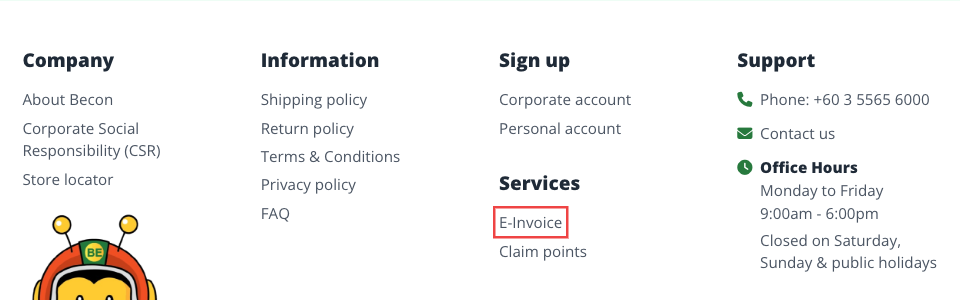
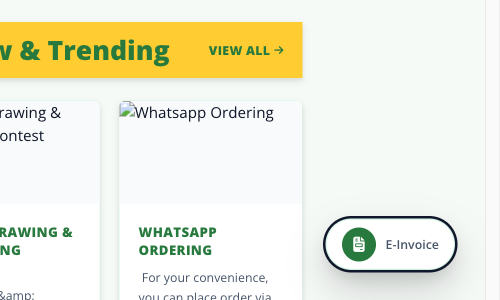
Go to becon.my/einvoice, or click E-Invoice under Services at the bottom of any page, or the green E-Invoice button at the bottom right corner of the screen.
Step 2: Sign in or create an account
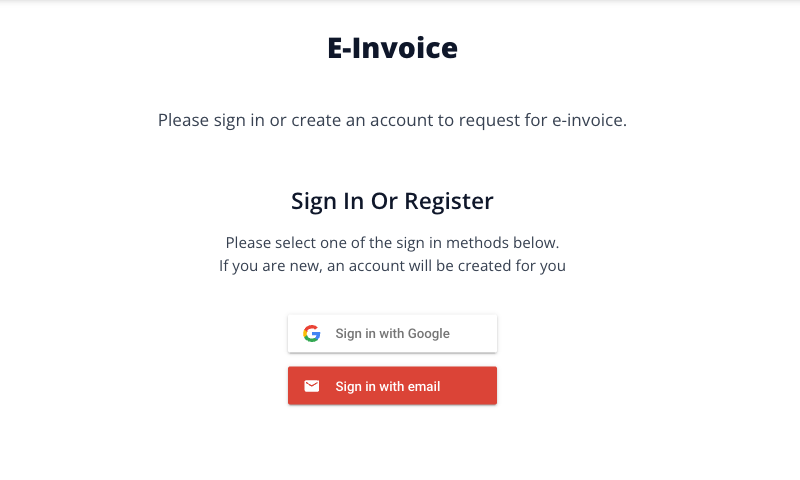
You need a Becon account to request an e-invoice. Choose Sign in with Google or Sign in with email. If you are new, an account will be created for you automatically.
Step 3: Enter your invoice number and receipt amount
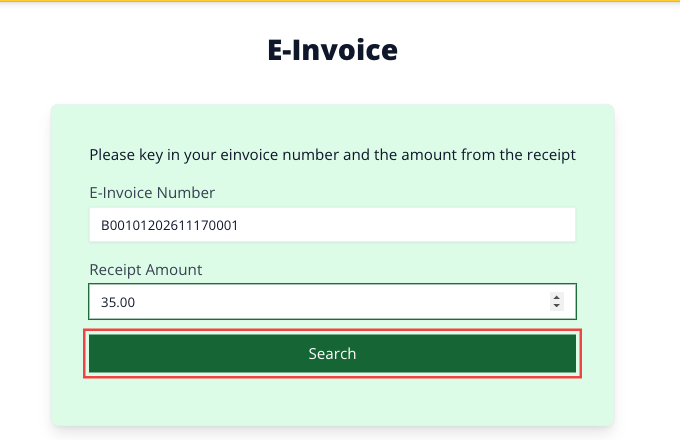
Key in the invoice number exactly as printed on your receipt (for example B00101202611170001) and the total amount paid, then click Search.
If you see a message asking you to wait, your receipt is not in our system yet. Please try again later. If more than 24 hours have passed since your purchase, contact our support team.
Step 4: Fill in your e-invoice details
Fill in the Customer Information form. This is the information that will appear on your e-invoice.
- Legal Entity Name: your full name, or your company name as registered with SSM
- Email & Phone: your e-invoice notifications will be sent to this email
- TIN Number: for example IG12345678090 (individual) or C12345678900 (company)
- ID Type: individuals and sole proprietors use NRIC; companies and partnerships use BRN
- SST Registration Number: enter NA if you are not SST registered
- Address: your billing address
Click Save Customer to submit your request.
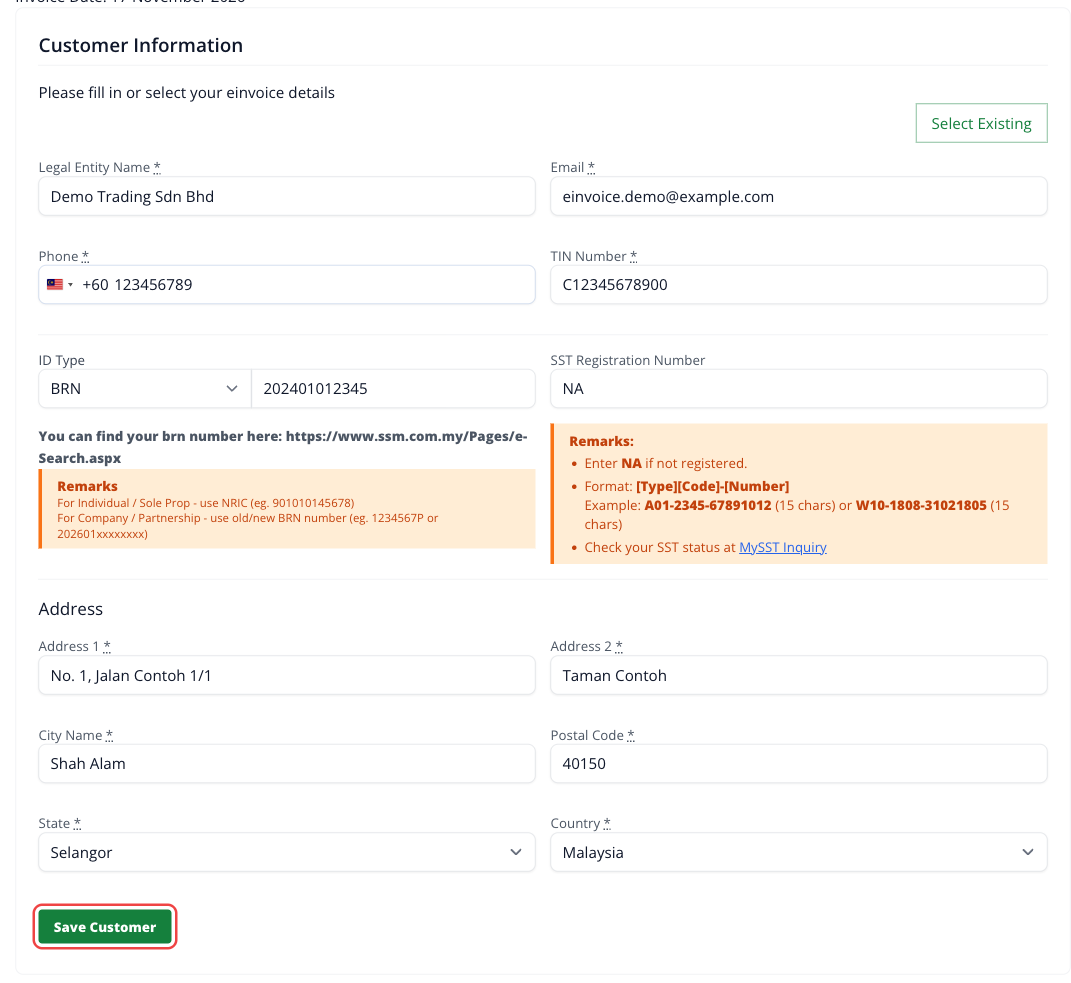
Tip: Your details are saved to your account. The next time you request an e-invoice, click Select Existing to reuse them instead of typing everything again.

Step 5: Wait for your e-invoice to be validated
After you submit, your e-invoice is sent to LHDN for validation. This can take up to 24 hours. While it is pending, you will see the message below, and you can still update your details if you made a mistake.

You will receive an email once your e-invoice has been submitted successfully.
Step 6: View and print your e-invoice
Once validated, come back to the E-Invoice page and search for the same invoice number and amount. Your e-invoice will now show the LHDN QR code. Click Print Invoice.
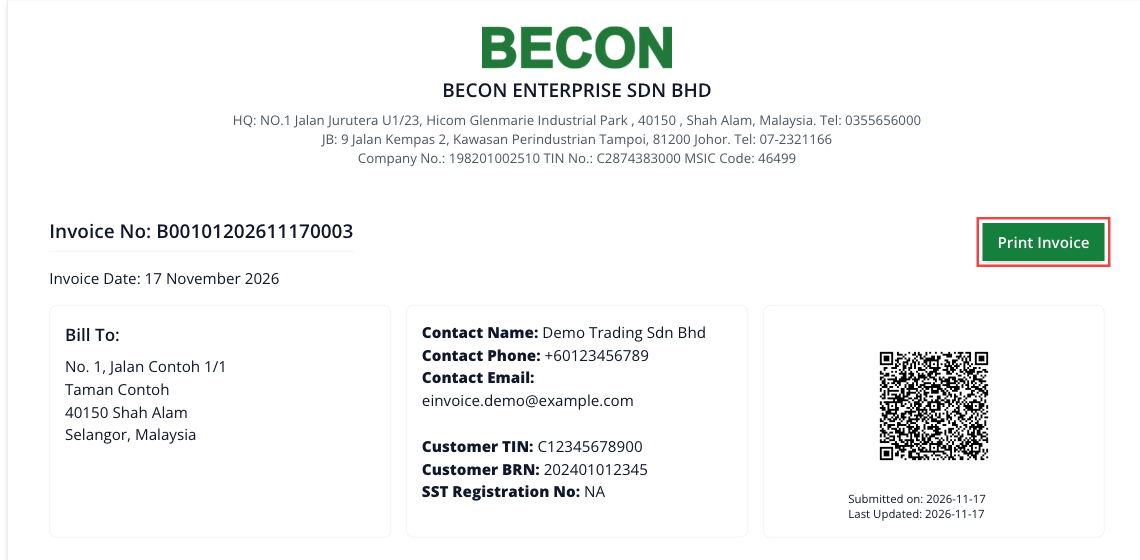
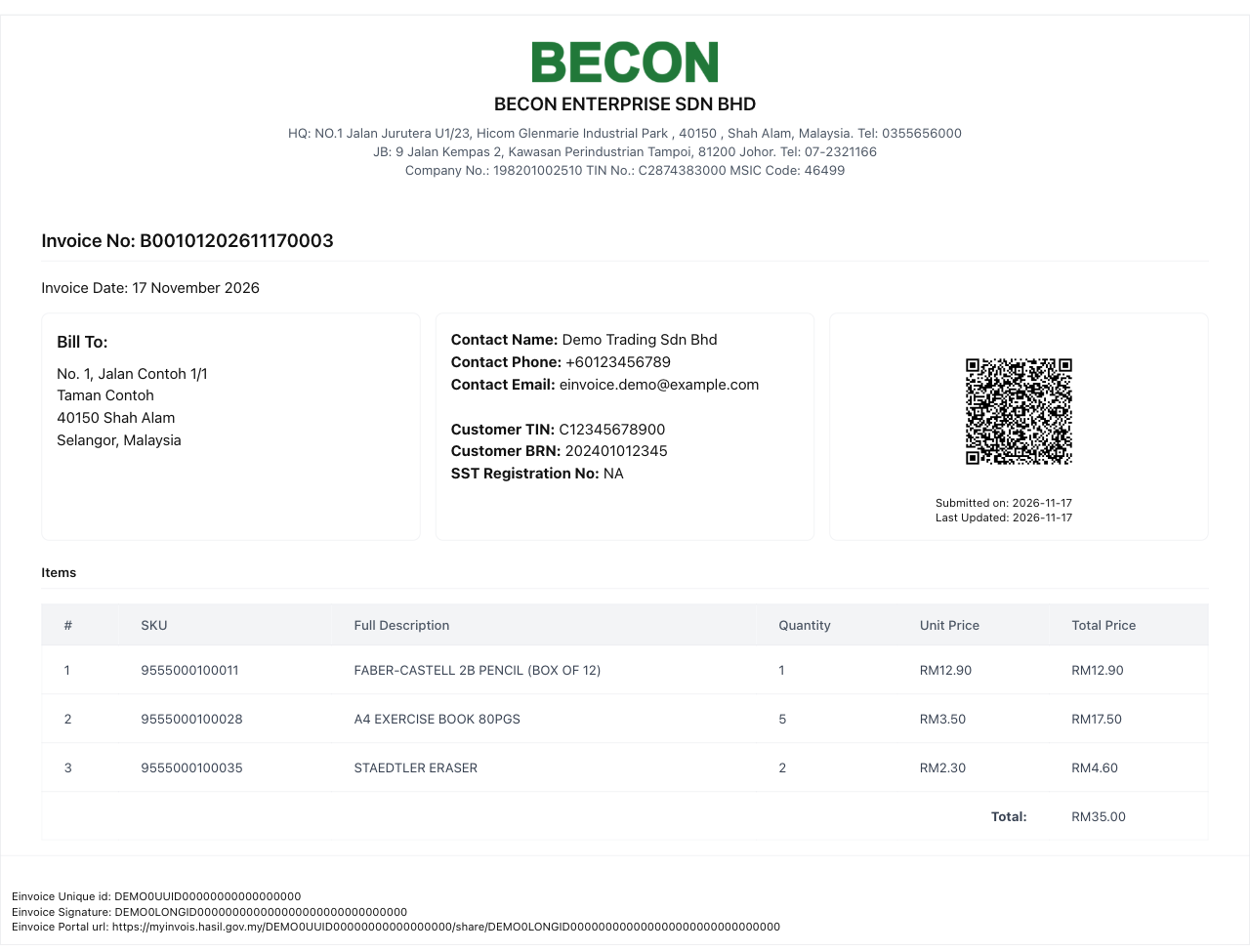
A print-ready copy opens in a new tab and the print window appears automatically. Choose your printer, or choose Save as PDF to keep a digital copy.
Frequently Asked Questions
Can I request an e-invoice using the Becon App?
Yes. Scan the QR code on your receipt with the Becon App.
Where do I find my TIN?
You can check your TIN on the LHDN MyTax portal (mytax.hasil.gov.my), or contact LHDN.
Where do I find my BRN?
Companies can look up their registration number on the SSM e-Search website (www.ssm.com.my).
I am not SST registered. What do I enter?
Enter NA in the SST Registration Number field.
It says "Price does not match". What should I do?
Make sure you enter the total amount printed on your receipt, including cents (for example 35.00).
My e-invoice submission failed. What now?
Open your invoice on the E-Invoice page. The reason for the failure is shown there. Correct your details and submit again. We will also email you a reminder.
Can I change my details after my e-invoice is validated?
No. Once LHDN has validated your e-invoice, the details cannot be changed on the website. Please contact our support team.
I need more help.
Call us at +603 5565 6000 (Monday to Friday, 9:00am to 6:00pm) or email sales@becon.com.my.
 You can open this page in your preferred browser like this